Showing posts with label xbee. Show all posts

08 April 2009

XBee Series 2 - Reading Data in API Mode

After I finally got a ZNET 2.5 Coordinator AT associated with a ZNET 2.5 ROUTER / END DEVICE by figuring out that the default JV Channel Verification parameter was key, I stumbled again.

I can send character data from end device to coordinator and see it come out of the UART.

But when I have an end device with the ADC enabled (ATD1=2) and the IO Sampling Rate (ATIR=4E20) set to 20 seconds, I see the coordinator's red LED flicker as data is being received. But nothing appears to come out of the coordinator's UART.

Back to drawing board with Mr Google. I searched websites, blogs, forums. Some are claiming it works great, others are having issues. I'm on the issue side.

Then came across this in the XBee ZNET 2.5 Product Manual, section 4.5.3. Periodic IO Sampling :
Periodic sampling allows an XBee / XBee-PRO module to take an IO sample and transmit it to a remote device at a periodic rate. The periodic sample rate is set by the IR command. If IR is set to 0, periodic sampling is disabled. For all other values of IR, data will be sampled after IR milliseconds have elapsed and transmitted to a remote device. The DH and DL commands determine the destination address of the IO samples. DH and DL can be set to 0 to transmit to the coordinator, or to the 64-bit address of the remote device (SH and SL). Only devices running API firmware can send IO data samples out their Uart. Devices running AT firmware will discard received IO data samples.
I swear that when I searched around, I found people claiming to receive IO data in AT mode. I surely can't so maybe the manual is on to something. I'll try API mode. Bet it's a boatload of fun.

TIP: When writing API firmware to a device that currently has AT firmware on it (or visa-versa), after the write, X-CTU complains that it failed to enter command mode. This is because the "Enable API" setting on the PC Settings / Host Setup tabs need to be toggled.

After putting ZNET 2.5 COORDINATOR API on, I did start to seem to receive data. But not what I expected. With AT Transparent Mode, I could just read a string straight from the UART and parse away. Now in API Mode I'm getting some weird gook that sure doesn't print very nice. Probably that API Frame thing that I skimmed past in the manual. Darnit, I gotta just sit down and read that thing.

Section 6 API Operations goes into detail about how life has now changed and the free ride is over. It says "API operation requires that communication with the module be done through a structured interface (data is communicated in frames in a defined order)". Oh Joy.

I started hacking my Python app to see what kinda data I was getting myself into. The frame starts with a start byte of 0x7E and then followed by a two byte length. The IO data that I'm trying to get to is locked away in the Frame Data block that doesn't seem too bad.

Luckily before I started to make a career out of writing a API Frame parsing mess, I went back to Google to see what the trail blazers have done for me. I found the xbee.py file that ladyada used for her tweet-a-watt. Too bad it's for Series 1 and not a lot of help. But the header notes the author as Amit Snyderman. Wonder if he has a Series 2 version. Woo Hoo, he's got some google code at http://code.google.com/p/python-xbee But wait. The page says: The XBee API code is incomplete, missing support for valid checksums and an implementation for working with the Series 2 API. Darn it. Another bad lead.

Well, I'm on the Python Xbee page, I might as well be nosey and poke around. Maybe I can use the Series 1 code as a starting point and hack it up enough to get my single channel ADC data. Let's look it the Subversion source. What's that under the trunk? An XBee 2.5 folder. Woo Hoo!

Grab the xbee_api.py file, save it to your project folder and then for a quick test, write a second file like this:
#!/usr/bin/env python

from xbee_api import *

# replace first param with your serial port
a=XbeeApi("/dev/tts/0",9600)

Save this in a file called coord.py, make it executable (chmod +x coord.py), and run it (./coord.py). Now when sampled IO data is received, this is printed. Do I hear a Woo Hoo?
onData() ->{'code': 146, 'data': {'asamples': [3, 255], 'dsamples': [[0, 0, 0, 0, 0, 0, 1, 1], [1, 1, 1, 1, 1, 1, 1, 1]], 'dmask': [[0, 0, 0, 0, 0, 0, 0, 0], [0, 0, 0, 0, 0, 0, 0, 0]], 'mac': [0, 19, 162, 0, 64, 62, 33, 116], 'samples': [1], 'address': [60, 237], 'amask': [[0, 0, 0, 0, 0, 0, 1, 1]], 'options': [1]}}
data {'asamples': [3, 255], 'dsamples': [[0, 0, 0, 0, 0, 0, 1, 1], [1, 1, 1, 1, 1, 1, 1, 1]], 'dmask': [[0, 0, 0, 0, 0, 0, 0, 0], [0, 0, 0, 0, 0, 0, 0, 0]], 'mac': [0, 19, 162, 0, 64, 62, 33, 116], 'samples': [1], 'address': [60, 237], 'amask': [[0, 0, 0, 0, 0, 0, 1, 1]], 'options': [1]}
Now I need to figure out to interpret the data 'asamples'. But this is looking very promising. FYI, I'm going down this path to hook a thermistor to an XBee for my pool thermometer. More details to follow as I make more progress.

More FYI. I'm running this with OpenWRT on a wl-520gu hacked for my tweet-a-w/e. The receiving XBee is named BLUE. The second XBee is name WHITE and is connected to my laptop with an adafruit XBee Adapter that has ADC pin 2 setup for 20 second periodic IO sampling.

I've saved the today's version of my X-CTU config files here:
BLUE with ZNET 2.5 COORDINATOR API

WHITE with ZNET 2.5 ROUTER / END DEVICE AT with ADC pin 1 enabled and 20 second IO sampling.

What do you think? Leave a comment.

XBee Series 2 - JV Channel Verification

Damn it. Why do the simplest things always take hours to complete? I'm using XBee Series 2 cause I really didn't know what I was buying. Series 1 or Series 2? To a newb, sounds like 2 is the shiny. Why buy an out-dated series 1? Nobody wants last year's model.

If I would've done my homework, the series 1 (also called 802.15.4) are the most reliable, easiest to use. So of course, I'm using Series 2.

I first attempted to use them as described in the ZNet 2.5 Modules Product Manual, one as a coordinator, one as an end device. No luck. I followed every instruction I could find on the web. Nada.

Just by dumb luck, I found that if I flashed two radios as ZNET 2.5 ROUTER / END DEVICE AT and then set the Destination Address of each to point to the other, it appeared to work. I could send data to and from the serial ports. I used them in this way for the tweet-a-w/e foundation and had good success.

For an end device called WHITE that will talk to another end device named PINK, use X-CTU and load the ZNET 2.5 Router / End Device AT firmware. Go to the X-CTU Terminal tab and type:
+++
ATRE
ATNIWHITE
ATDNPINK
ATWR
Here's the X-CTU file for WHITE.

But now I'm trying to send analog data from one to the other and I'm back to nada. The data receive light blinks and it appears to read data, but nada bit comes out of the UART.

I decided to go back to square one and reconfigure as coordinator and end device. Sounds easy? Right. Took me two nights to get the devices associated. What's associated? From page 14 of the 802.15.4 manual (and not in the series 2 manual):
Association is the establishment of membership between End Devices and a Coordinator. The establishment of membership is useful in scenarios that require a central unit (Coordinator) to relay messages to or gather data from several remote units (End Devices), assign channels or assign PAN ID.
The series 2 manual seems pretty decent. I've read many sections and need to sit down and attempt to read more. Too bad though that it doesn't mention parameter JV Channel Verification. Which is the parameter that finally made a difference.
[update] maybe I was looking at the wrong manual. The one I ref'd above is the Series 2 Manual. The JV parameter is mentioned in the ZNET 2.5 manual.

When setting up a coordinator and associated end devices, there's a few things that you need to do:
  • After writing the firmware, go to the terminal and do a ATRE to reset to factory values. I would've saved lots of time if I realized that previous values were not being overwritten between firmware loads.
  • Make sure that the PAN ID is set the same on both devices. I suggest that while debugging, you have both devices connected to your computer via an adafruit XBee Adapter or SparkFun XBee Explorer and use X-CTU to monitor. You need to verify that the Operating PAN IDs are the same when they're trying to associate.
  • Set each device to a unique Node ID
  • The coordinator destination address should be set to DH=0, DL=FFFF
  • The end device destination address should be set to DH=0, DL=0
And for basic communications, that should be it. No need to set destination address of the end device explicitly to the coordinator. The 0's do that for you.

My problem though was my coordinator was on channel F and my end device was channel D. I could see this while watching them start up, but I could not figure out WTF.

Finally by going thru every parameter on both devices using X-CTU, I realized that JV Channel Verification was the ticket. This is described in the X-CTU tool as:
Set/read the channel verification setting. If enabled, a router will verify a coordinator exists on the same channel after joining or power cycling to ensure it is operating on a valid channel, and will leave if a coordinator cannot be found (if NJ=0xFF). If disabled, the router will remain on the same channel through power cycles.
In English, this means that if your devices are on different channels and JV is disabled, you're fricked cause the router won't go to another channel to associate.

Change JV to enabled and reboot the device:

+++
ATJV1
ATWR
ATFR

I've uploaded the configuration to my coordinator named BLUE that has ZNET 2.5 COORDINATOR API firmware. And an end device named PINK that has ZNET 2.5 ROUTER / END DEVICE AT firmware.

What do you think? Leave a comment.

28 March 2009

XBee Adapter Kit PDQ

Just got done building an XBee Adapter and tested it in 34 minutes. That's right, 2040 seconds. Or 0.566666667 hours. Either way, it's PDQ.

I'm a soldering novice. I've been burning my finger tips for some years now but in limited batches so I'm in no way claiming any skill. (Actually, I'm claiming a lack of skill) And I wasn't speeding, I was in no rush to build this thing.

I opened the mail and snapped that there picture over there. Plugged in my soldering iron and started to look through the adapter pieces as it warmed up.

I built one of these last year so I knew the routine. They're so dirt simple, I didn't even have to look over adafruit's instructions this time. I just glanced at my other adapter to see which resistor was which. Everything else is a no-brainer to fit onto the board.

I did a few things different this time though. Since I don't have a PCB vice, I'm stuck with having the board laying flat on my bench. So I soldered in the 74125 buffer first, the female header sockets next, all the other pieces, and the male header pins last. Your mileage may vary, it was just simpler for me in that order.

So if I already have one of these (and a XBee Shield and a XBee Explorer), what the heck am I doing building another?

Now that I have a workable tweet-a-w/e, I need more XBees "whatevers".

I'm planning to have temperature sensor to tweet swimming pool data. So I need another XBee and an XBee Adapter.

I'm planning to use Sparkfun's Nike+ receiver in a Serial Adapter connected to an Arduino and start tweeting stalker data. So I need another XBee and an XBee Adapter.

I'm planning to hook up various ADC things to an Xbee and start tweeting real data. So I need another XBee and an XBee Adapter.

Get the point? I need more XBees and XBee adapter kits. Unfortunately the boss doesn't understand, so I will need to get these one or two at a time.

I finished soldering, slapped in an XBee and ran a test script that tweeted a tid bit to twitter. I knew I was making good progress but only noticed how fast after I snapped a second picture, and saw the timestamp. 34 minutes. I can't even make minute rice in 34 minutes.

22 March 2009

tweet-a-whatever (tweet-a-w/e) foundation

My explanation of the tweet-a-w/e ran pretty long in my last post. I took an Asus wl-520gu wireless router, installed OpenWrt, Python, and an Xbee to build the foundation of a tweet-a-whatever (tweet-a-w/e). My 13 year-old texting obsessed daughter choose that name BTW. The last post ran so long that I cut it off after I talked about how to read the serial port with pySerial.

This time, I'll explain a simple Python app that receives a string from a Xbee, decodes its header and then tweets the payload to a twitter account. I'm a complete Python newb so if you have suggestions on a better implementation, I'm all ears.

Here's basically what I've done. Heavily borrowed from mightyOhm and ladyada, this project receives data from Xbees in "the field". Using a unique header, the client app determines the payload destination which can be a tweet or a web service.

Mr mightyOhm has written a great series on hacking the Asus wl-520gu wireless router to build an open source wireless streaming internet radio receiver. If you haven't read thru Jeff's work, stop right now and read it. Now.

Ladyada's award winning tweet-a-watt takes data from a kill-a-watt, sends it to Xbee embedded in a hacked wl-520gu and then tweets it for the world to see how green you are. I've copied the Xbee connection from her and the idea of using Python. She didn't post her Python source, so I've had to stumble thru this. I just read tonite, that the tweet-a-watt project will be a project in Make Magazine, volume 18. [update] ladyada did post her source, I just missed it. Check out her good stuff here.

My tweet-a-w/e's spin is that any data generating thing (a "whatever") can be hooked to an Xbee in the field. Either directly to the Xbee or via an Arduino. The Xbee transmits to a receiving Xbee that has been wired into the serial port of a hacked Asus wl-520gu. The Python app running on the router reads the data and based on a unique header code, the payload is either tweeted or sent to a web service.

So I ended last time by showing a small snippet of Python that read the incoming data and printed it. Now let's modify that snip so it reads the first few characters and makes a decision of what to do. This first revision is pretty hackish and we'll improve on it as "whatevers" are added in the field. My opinion is get it working, then optimize.

Last time we installed Python but I didn't tell about the python-twitter wrapper from DeWitt Clinton. Here's what I did:
  • Install simple JSON dependency
  • wget http://pypi.python.org/packages/source/s/simplejson/simplejson-2.0.9.tar.gz
  • gunzip simplejson-2.0.9.tar.gz
  • tar xvf simplejson-2.0.9.tar
  • python setup.py install
And crash. Some weird error about "No module named _md5". WTFO?

Mr Google has no clue about this error. Plenty of problems, but I couldn't find anything. I mucked with my LD_LIBRARY_PATH and considered rebuilding Python. Finally, I actually started looking at the source referenced in the trace. Here's what I found. Install OpenSSL and problems are solved. I wrote about my fun here.
# opkg update
# opkg install openssl-util
And finally install python-twitter:
  • wget http://python-twitter.googlecode.com/files/python-twitter-0.5.tar.gz
  • gunzip python-twitter-0.5.tar.gz
  • tar xvf python-twitter-0.5.tar
  • python setup.py install
Woo hoo. We're ready to tweet.

I'm currently planning 4 whatevers that will be talking to the router:
Each whatever will be uniquely ID'd so the incoming data can be routed to a twitter acount or any other web resource. Because my originality lacks, I started with "[0]" for the test Xbee on my laptop, "[1]" for the temperature sensor, "[2]" for the Nike+, and "ox7e" for the Xbee.

I created an array to hold the whatever name, the unique header, the action to perform, and username/password:
# tweet-a-w/e stuff array
#   "whatever", header string, action, user, password
#
WE_ARRAY = [
['WE_TEST', '[0]', _tweet_it, 'username', 'password'],
['WE_TEMPERATURE', '[1]', _web_it, 'username2', 'password'],
['WE_NIKEPLUS', '[2]', _stalk_it, 'username3', 'password'],
['WE_XBEE', '0x7e', _tweet_it, 'username4', 'password']
]
The action array elements are functions to perform the tweet or web action. Here's what I defined:
#
# define functions to do something with received data
#

# tweet data
#
def _tweet_it(data, twuser, twpass):
# login to twitter
print 'tweet w/' + twuser
api = twitter.Api(username=twuser, password=twpass)
api.PostUpdate(data)

# web service data
#
def _web_it(data, twuser, twpass):
# tbd
print 'wrote to web service w/' + twuser

# stalk the data
#
def _stalk_it(data, twuser, twpass):
# tbd
print 'watch it w/' + twuser
Ok, now let's read the data and determine what we got:
# open up the serial port on router
#
print 'opening serial port ' + SERIALPORT
ser = serial.Serial(SERIALPORT, BAUDRATE, timeout=TIMEOUT)
ser.open()

# read data
#
try:
print 'entering read loop'

# loop forever
while 1:

# read it from serial port
data = ser.read(NUMCHARS)
if len(data) > 0:
print 'Read: ' + data

# loop thru our whatever array and see if we recognize the header
for i in range(0, len(WE_ARRAY)-1):
if data.startswith(WE_ARRAY[i][1]):
print WE_ARRAY[i][0] + " action " + WE_ARRAY[i][2].__name__
WE_ARRAY[i][2](data, WE_ARRAY[i][3], WE_ARRAY[i][4])
break

finally:
print 'closing serial port'
ser.close
The only tricky thing in that code is the action call. Once we have a header match, the 2nd array element is one of the action functions that we defined. Simply call it and pass the data, username/password as arguments.

My Python client file is here.

Get your file on the router and start it:
root@OpenWrt:/opt/project# python XbeeReader.py
And send it something. For me, a quick test is to use another Xbee in the SparkFun Xbee Explorer. When I plug this in to my laptop, it shows up as /dev/ttyUSB0 so to write a quick string is as simple as:
d@hopper:~/projects/wl-520gu$ echo "[0] Testing " + `date` > /dev/ttyUSB0
And on the router telnet window, I see:
opening serial port /dev/tts/0
entering read loop
Read: [0] Testing + Thu Mar 26 23:30:47 EDT 2009
WE_TEST action _tweet_it
tweet w/skibicki
I'm using a test twitter account and viola, the string "[0] Testing" shows up like magic.

How are the Xbees configured? Real easy. I put ZNET 2.5 Router / End Device AT firmware version 1244 on both. I use Linux so using X-CTU was a little tricky until I figured out how to use it with Wine. I wrote about it here.

The Xbee in the router is named PINK. Last year, I built the NKC Xbee Shield Kit and goofed something up. When I installed the Xbee, it got really hot and the white Xbee label turned pink. It still works but is discolored. Here's the X-CTU file for PINK.

The Xbee connected to my laptop via the Xbee Explorer is named WHITE. Because it's not discolored. The config is EXACTLY same as PINK except for the name and destination. After loading the ZNET 2.5 Router / End Device AT firmware, I went to the X-CTU Terminal tab and typed:
+++
ATNI WHITE
ATDN PINK
ATWR
Here's the X-CTU file for WHITE.

Plans for next time. Clean up the client so only the data is written to twitter and not the unique header. Then hook up the DS18B20 temperature sensor and start tweeting real data.

What do you think? Leave a comment.

21 March 2009

tweet-a-w/e using Asus wl-520gu and Xbee

Update: Newegg no longer stocks the Asus WL-520GU router but this is still a cool project. You can find these routers for $10-20 (or more) on eBay. Also someone sent me a comment that the Linksys WRT54G routers have serial ports that could be used in a similar manner. I haven't tried this yet but if a cheap Linksys router comes my way, I'll try and attempt to blog about it.
---------------------------------------------------------------------------------------------
A few of the geeks that I stalk follow on twitter have done some interesting things with the Asus wl-520gu wireless router. Jeff Keyzer of mightyOhm has a real nice series on using the router where he builds an open source wireless streaming internet radio receiver. He walks you step-by-step on why he chose the wl-520gu, how to load OpenWrt, adding a serial port header, and even interfacing it to an Atmel ATmega168 AVR microcontroller to drive an LCD. Very nice, thanks Jeff.

Mr mightyOhm is also the admin of the Asus Wireless Router Hacks Flickr Pool. Check out a few of the cool things he and others have done with the wl-520gu.

Not to be out done, LadyAda hacked her 520gu and ported her tweet-a-watt xBee code in a 5 hour hack fest. That's her router picture over on the right. Click it and see a brief description of her efforts. She mentions this project on twitter and on flicker but I haven't seen it on her blog. I've been messing with Xbees lately and ladyada's hack is just what i need.

I've been thinking about a tweet-a-temperature project that would monitor my pool temperature and tweet it every so often during the summer months. While I'm toiling away in the office, I could get SMS spam telling how great life is outside work.

Or maybe a tweet-a-lert that let's me know when my super-sekret door has been opened. Or a tweet-a-stalk when a victim with Nike+ shoes runs by a sensor.

Let's lay down the foundation for a tweet-a-whatever (tweet-a-w/e) project by hooking an Xbee to the router and installing a Python client that tweets whatever is received.

Yes, this seems to be very similar to ladyada's tweet-a-watt port. I'm shamelessly copying the hard work of mightyOhm and adafruit to set this up. What's my value-add? I'll ramble a lot and tell you about all my dead-ends.


We'll take a wl-520gu router, install openWrt firmware and configure it as a wireless client to my existing house wireless network. Using the 520gu's serial port, I'll hook up an Xbee in an Adafruit adapter. Next, install Python on an automount USB drive and write a client that reads incoming Xbee data and does the tweet.

So I ordered a wl-520gu from newegg and eventually pretty much followed mightyOhm's instruction for installing header pins on the serial port and installing OpenWrt.

If you've read any of my other ramblings on this blog, you know already that I'm not very original and sometimes not very smart. But I'm decent at stealing reusing other people's work and twisting it to fit my needs.

Let's first talk about the stupid things I did so you can avoid the mistakes in life that I have made.
  • Both mightyOhm and ladyada used OpenWrt by first flashing dd-wrt and then OpenWrt. Me? I choose to use tomato firmware instead because I wanted built-in USB support and the description of its feature sounded great. And because I wanted to waste 3 nights trying to configure it in wireless client mode. I'm not saying tomato is bad, I'm just saying that I struggled big time and I couldn't find many online tips. I finally said "uncle" and followed the mightyOhm's way and installed openWrt. And had it working in under a half-hour.
  • Installing a four-pin header isn't a hard thing. All I had to do was remove 4 blobs of solder and then solder in a header. So ... Why did I somehow brick my router? I was super duper careful removing the blobs (without a de-solder-er iron or a bulb) and then was careful soldering in the pins. I only applied heat for a max of 5 seconds and let it cool for about 5-10 seconds before re-attempting. Yet I did it. After I finished the header, the darn thing wouldn't boot. Nothing, dead to the world. No reset, no LED action, nada. I cussed for a day or two and then ordered a new one from newegg. Before I de-blobbed the new one, I ran down to Rat Shack and bought a desoldering bulb. 20 minutes later, I had a working router - with header pins. Lesson? If at first you don't succeed, spend more money.
  • With the default Asus firmware still installed, I found that logging in via telnet, the user/password was root/admin. Via the browser at 192.168.1.1:80, the user/password was admin/admin. Kinda odd, but maybe this tip will save you some hair.
Okay, so where are we in this story? Oh yeah, the start. Buy a wl-520gu router and boot it up fresh from the box. Don't muck with anything yet. Confirm that it starts and you can log in via a wired ethernet cable on a LAN port. The default address, username, password are on the bottom of the router (192.168.1.1, admin, admin).

On the 1st router that I bricked, I installed new firmware first, then tried to install the headers. On my working router, I did headers first, then firmware. I don't think it really matters what order you do this. But I ruined a $59 router, so you trusting me?

So do your own thing and follow mightyOhm's excellent instructions. Get headers on the serial port, install openWrt, and meet me back here in a few.

Back already? Good, you should have a router with OpenWrt that acts like a wireless client on your network. You should be able to wirelessly connect via telnet as well as via the serial port.

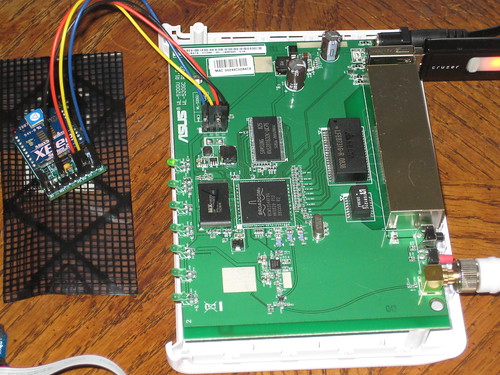
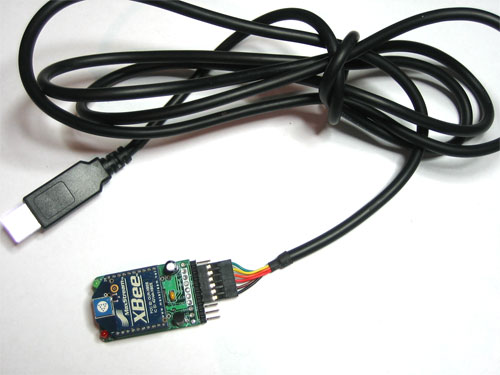
Yeah, I know the picture over there is kinda blurry but it's the best camera I have (donations accepted). If the picture was clear, you would see that I'm using a USB TTL-232 cable to talk to the router from a USB port to the router's shiny new headers. mightyOhm's picture on this page was very helpful for the pin-outs.

As is, the OpenWrt's filesystem is pretty cramped. There's not much space available to install extras such as Python. I had an extra Sandisk Cruzer laying around so I setup the router to automount the USB stick on /opt.

From either the serial line or a wireless telnet (my preference),
Then using hints from the openWrt wiki, I executed these commands:
  • # opkg update
  • # opkg install kmod-usb-core
  • # opkg install kmod-usb-ohci
  • # opkg install kmod-usb-storage
  • # opkg install kmod-fs-vfat
  • # opkg install kmod-fs-ext3
I installed both vfat and ext3 because my USB stick was currently fat but I wanted to reformat it to ext3. That should be pretty simple to do but as with most things, it was a hassle. I finally found how to do it and did this (click the link).

I want to install Python libraries and other extras on the USB drive so we'll need this auto-mounted at boot time. I couldn't locate clear instructions on this but here's what worked for me. Using tips from this place, I did:
  • Create a mount point
  • # mkdir /opt
  • Create an /etc/rc.d/S11mount file with macsat.com contents from this page.
  • NOTE: macsat's page references this as /etc/init.d/S11mount. For my version to work, I did not put it in init.d but instead put it in rc.d
  • # vi /etc/rc.d/S11mount
  • Paste in macsat's example S11mount content. My file version can be found here.
  • change the MOUNT_DEVICE0 statement to match your device. My USB stick was exactly the same as his example.
We're really making progress now. Next, we want to setup opkg so we can install large packages such as Python to the USB. Again, I'm using tidbit's from macsat.com excellent pages. Here's the good stuff.
  • Edit opkg config file to create an alternative destination for packages
  • # vi /etc/opkg.conf
  • Add this line:
  • dest opt /opt
  • My copy of the opkg.conf file is here.
Now some housekeeping. Since we want to install libraries and stuff on the USB stick, we'll need to continue following macsat's advice and update PATH and LD_LIBRARY_PATH in your /etc/profile. I set mine to:
  • export PATH=/bin:/sbin:/usr/bin:/usr/sbin:/opt/bin:/opt/sbin:/opt/usr/bin:/opt/usr/sbin
  • export LD_LIBRARY_PATH=/lib:/usr/lib:/opt/usr/lib:/opt/lib
If you'll be installing services on /opt that you want to start at system boot time, be sure to check out macsat's script here. I'll be using this after I complete the client app. For now, I'm just manually starting.

At this point, we have a flashed wl-520gu router with OpenWrt, headers soldered to serial port, and configured to mount a USB stick to opt at bootup. Let's keep mushing on.

The line that we added to the top of our opkg.conf file
sets us up to install from the kamikaze 8.09 packages which contain the Python 2.5 that I seek. Do this to install Python on the opt mount:
  • # opkg update
  • # opkg -d opt install python
Assuming that you haven't fallen asleep and you've setup your route similar to mine, after a few minutes, Python and all dependencies will be safely setup on /opt. Give it a try:
  • # python -V
And you should see the proof:
Python 2.5.4
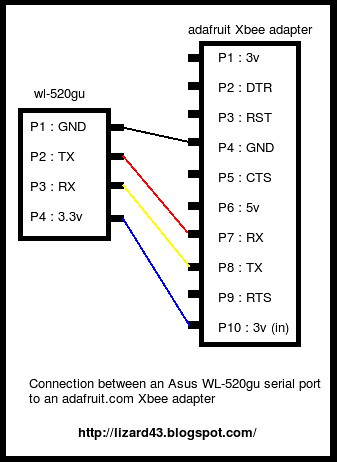
Using the AdaFruit Xbee Adapter that I blogged about last year, the next step is to simply hook it up to the 4-pin serial headers. This is the easiest step of all. 4 wires, hook 'em up.
  • wl-520gu GND -> Xbee GND
  • wl-520gu 3V -> Xbee 3V
  • wl-520gu TX -> Xbee RX
  • wl-520gu RX -> Xbee TX
Since OpenWrt uses the serial port /dev/tts for console login, we need to modify the /etc/inittab file. All this takes is to comment out the tts line:

#tts/0::askfirst:/bin/ash --login

I'm using Python for the client app, so we need to install the pySerial module from SourceForge. Create a temp folder on /opt, CD to it, download pySerial, unzip, untar, and install
All we need now is a app that reads the serial port and tweets. This blog getting pretty long so I'll just explain the serial port read and talk about the tweet part next time.

reader.py

#!/usr/bin/env python
import serial, time

SERIALPORT = "/dev/tts/0"     # the com/serial port the XBee is connected to
BAUDRATE = 9600               # the baud rate we talk to the xbee
TIMEOUT = 0.5                 # the timeout to wait for buffer fill
NUMCHARS = 140                # the number of characters to attempt to read at once

# open up the FTDI serial port to get data transmitted to xbee
print 'opening serial port ' + SERIALPORT
ser = serial.Serial(SERIALPORT, BAUDRATE, timeout=TIMEOUT)
ser.open()

try:
print 'entering read loop'
while 1 > 0:
data = ser.read(NUMCHARS)
if len(data) > 0:
print "Read " + data
finally:
print 'closing serial port'
ser.close
I've modified the reader.py quite a bit so that it tweets the received data, but the version above simply echoes the data to the terminal.

Run it like this:
# python reader.py
Send the Xbee data from another Xbee and watch it print.

Alright, I'm stopping and will pick up the story in my next entry. Look at this picture to see where we're going.


What do you think? Leave a comment.

31 December 2008

Xbee Shield Kit Schematic V2.0

I've been getting a lot of Google hits on the blog looking for the Arduino Xbee Shield Kit V2.0 schematic. I had a hard time finding V2.0 also 'cause NKC Electronics seems to only have V1.0 posted. NKC's Support Forum link is also 404'd. I emailed them in October about the bad link but when I checked a few bits ago, it was still a dead end.

I ended up getting my V2.0 schematic copy (that's only a partial shot over on the left) from NKC support via an email exchange and have uploaded the pdf to: http://www.mediafire.com/?zjtykjtohji

Let me know if the link doesn't work for you. Or leave a comment if it does. Tell me what you're using the shield for. Or look around at the rest of the blog. It's free ...

05 December 2008

Xbee Chat

OohRah! I now have two Xbees chatting. I hadn't messed with the Xbees for a few weeks because work was crazy and the Holidays, etc. After a few days of vacation, I dusted off the junk and tried to remember where I was.

One Xbee is in an AdaFruit Adapter connected to an Arduino Duemilanove and the other Xbee is in an Xbee Explorer USB.

The Arduino is wired to the Xbee Adapter Kit with only 4 wires. I used wire and connectors from the Wide Screen Salvage project.
  • Arduino Gnd -> Adapter Ground
  • Arduino +5V -> Adapter +5V
  • Arduino Tx -> Adapter Rx
  • Arduino Rx -> Adapter Tx
Note that the Tx->Rx and Rx->Tx. Since the Arduino and Adapter are talking to each other serially, this makes sense. But for the first few attempts, I had Rx-> Rx, Tx->Tx and of course it didn't work.

Digi's X-CTU was used to upgrade firmware. I originally had Coordinator firmware on the Explorer board but communications seemed spotty. Once I put ZNET 2.5 Router/End Device AT firmware on both and configured them like I wrote last month, things started coming together.

The Arduino is running a real simple sketch - it simply writes "Testing" to the Xbee which gets transmitted and then received by the Xbee connected to my PC. I used the X-CTU terminal tab to see the incoming message's. Kinda basic but I needed something to save my sanity.

Here's the next plan. Upgrade firmware on the PC Xbee to API (ZNET 2.5 Router/End Device API) and then use xbee-api - A Java API for Digi XBee/XBee-Pro OEM RF Modules and see if I can start programmatically working with these things.

21 October 2008

Xbee Adapter Kit

I'm still having problems with the Xbee Arduino Shield. I struggled with building the darn thing and am now wondering if I fried a component. I only applied soldering heat for max of 3 seconds and then waited 5 seconds before trying again. But some leads were troublesome and I applied, applied, and re-applied heat many times. I'm not getting my Xbee in the Xbee Explorer USB to successfully chat to the Xbee in the Aruino shield connected to the Pololu LV-168 Orangutan. I'm a man of action so after wasting hours debugging, what do I do? Buy something new!

Lady Ada's XBee wireless modem adapter looks interesting. Like the Xbee Explorer USB, it can can be quickly hooked to a USB port but it also has headers exposed that can used for prototyping.

Like the Xbee Arduino Shield, it's also a kit but it's only about 10 parts, only $10, and dirt simple to build.

It took about 1/2 hour to build, no troubles. Within an hour, I had both Xbee's associated with each other. Here's what I did:
  • Xbee 1. Put it in the Xbee Explorer USB and plugged into my laptop. It shows up as /dev/ttyUSB0.
  • Xbee 2. Put it in the new shiny Xbee Adapter with an FTDI USB TTL-232 cable and plugged into my laptop. It shows up as /dev/ttyUSB1.
  • Used Digi's X-CTU to setup Xbee 1 as a ZNET 2.5 Router/End Device AT
  • To use X-CTU, I had to first setup User Com Port COM10.
  • Named Xbee 1 to PINK by setting the Node Identifier (NI)
  • Set PINK's destination to Xbee 2 by entering this command in the terminal: ATDNWHITE
  • Left X-CTU running and started another X-CTU instance for Xbee 2
  • Used Digi's X-CTU to setup Xbee 2 as a ZNET 2.5 Router/End Device AT
  • To use X-CTU, I first had to setup User Com Port COM11.
  • Named Xbee 2 to WHITE by setting the Node Identifier (NI)
  • Set WHITE's destination to Xbee 1 by entering this command in the terminal: ATDNPINK
After that, each endpoint was linked to the other. A quick quick to confirm: In the terminal tab of each Xbee type:

+++
ATND

The Xbee should reply with the association information of the other. In PINK's terminal, I saw info about the associate WHITE:

1FEC (MY - 16bit Network Address)
0013A200 (SH - Serial Number High)
403E2174 (SL- Serial Number Low)
WHITE (NI - Node Identifier)
FFFE (? - Signal Strength?)
01 (?)
00 (?)
C105 (?)
101E (?)

Next, I'm planning to connect the Xbee Adapter to the Orangutan and have it send a simple test message to XBee in the Explorer.

12 October 2008

X-CTU with Linux

Update: There's been a few reports that digi's X-CTU has been targeted for a malware exploit.  I personally have had zero problems but wanted to share the warning.  Practice safe coding!

There is a Python X-CTU replacement that works well.  Read about it at the RoboSci Blog:

http://www.dudek.org/blog/180 

Gregory Dudek's download link for his xbee-gdxctu.py tool is midway down the article.  Also read the article comments for a list of required python libraries.

-----------------------------------------------------------------

X-CTU is the utility to use for setting up an Xbee. What the acronym stands for is a mystery. What isn't a mystery is that it's a Windows app.  

This quick post will explain how to run X-CTU with linux.  If you find this post useful, please consider leaving a comment.

From Digi's Knowledge Base:
X-CTU is a Windows-based application provided by Digi. This program was designed to interact with the firmware files found on Digi’s RF products and to provide a simple-to-use graphical user interface to them.

X-CTU operates strictly for Windows Platforms. The versions of Windows which are compatible with X-CTU are as follows:
Windows 98, 2K, ME, XP

X-CTU is NOT compatible with the following versions and Operating Systems:
Window 95, NT; Unix; Linux
Bummer. I ran the installer with Wine and the app seems to run but X-CTU can't find my USB COM port. I spent a few minutes on it and gave up.

For the past week, I've been booting into Windows XP to use X-CTU. That got old really quick so I went back to see if I could get X-CTU to work in Linux.

After running the X-CTU with Wine, the program is installed in

~/.wine/drive_c/Program Files/Digi-MaxStream/XCTU


Save up to 70% on Inkjet and Toner Supplies!
Just go there and run the X-CTU.exe program and it'll start right up. Except it won't recognize your USB serial port.
When I plug in the Xbee Explorer USB to my PC, it shows up as

/dev/ttyUSB0

A quick way to see your port name is to run this command:

ls -lt /dev/tty*

This will list all serial devices sorted by date with the newest at top.
I just needed a way for Wine to see that port.

While poking around in the .wine folder (see the above image), I noticed a folder called dosdevices. According to the Wine wiki, this folder holds device info.

For Wine to see a COM port, you simply have to create a soft link in the Wine dosdevices folder which is:

~/.wine/dosdevices

I created the soft link like this and randomly chose a high port (com10):
ln -s /dev/ttyUSB0 ~/.wine/dosdevice/com10

Then run X-CTU, go to the PC Settings Tab, User Com Ports Tab, type your new com soft link (in my example above, I used com10) in the Com Port Number box, and click Add.


Works great. Or at least it acts the same way as it does under Windows.
In the Select Com Port list, select your port, setup the correct serial params and click Test.

You should see a dialog that says "Communications with Modem .. OK". If not, make sure that your soft link points to the correct com device. Another occasional problem is the firmware version that is loaded on the Xbee.

If the API firmware is installed, you need to go to the PC Settings tab and click the Enable API checkbox.

My only problem now is that X-CTU doesn't remember the User Com Ports between runs so I have to re-enter it each time. Minor annoyance since it's easier the booting into Windows each time.

BTW - The X-CTU User Manual can be found here.

What do you think? Leave a comment.

01 October 2008

Xbee Arduino Shield Kit

Yow. I've soldered a few things in my day but I kinda struggled putting together the NKC Electronics Freeduino Arduino Xbee Shield V2.0 Kit. Sure laugh it up, look at the very few parts in the picture. But this took me almost 3 hours of intensive labor, smelling caustic fumes, and burning fingers. I clearly over estimated my solder-foo.

The kit is great, well marked, pieces are minimal, the assembly instructions are clear, I just need practice soldering the many header pins. I'm so glad there wasn't any Surface Mount (SMT) because I couldn't have done it.

Now that it's built ... Now what? I need to interface this thing to the Pololu LV168 Orangutan Robot Controller. The shield is intended to work with an Arduino not an Orangutan. Both are based on the Atmel ATmega168 microcontroller but different form factor, different layout. Hmm ... Did I buy the wrong Xbee thing? Why was the shield thing the way to go? This click-to-buy option on web pages is starting to get me in trouble. I buy before I really know if it's the right solution. Hell, at least I got to practice my soldering skills.

The great thing about an Arduino shield is that it lines up with the sockets on the Arduino board and makes all the necessary electrical connection auto-magically.

The bad thing is that an Orangutan isn't the same form factor as an Arduino and that shield wasn't going to just line up and plug in. I need to connect the pins myself.

The best that I can tell, the Xbee really only needs 4 pins connected. Many other options but in the dirt simple mode, just these four:
  • +VCC
  • Ground
  • Din (Tx)
  • Dout (Rx)
The shield has a TLV2217 voltage regulator that takes the Orangutan's +5V and outputs a nice +3.3V for the Xbee. I knew that I wanted that shield for something. So, I need to power the shield with +5V but where? Where does the voltage get applied? Looking at the schematic, it was still not clear. The only place I see +5V is to the ICSP. Could that be it?

I posted a few forum questions at various boards and received the usual RTFM responses. Those are really helpful. I'm struggling, just have a question that I can't find the answer to anywhere, I really have read the flippin' manual and searched till I'm blue, and the experts don't help. Instead they write, "If you look at the pins on an arduino, you can see which pins get connected to what". Great, thanks much.

In the ICSP link above, the Tinker It Now dude says "connect the 5v only if you want your Arduino to power the target board". That was the first clue (thanks Tinker It Now) that I found about how a shield gets powered.

So I hook +5V to the shield's ICSP pin 2, GND to the shield's ICSP pin 6. Half way there.

What about Rx/Tx (Din/Dout)? What pins do they get hooked to? On an Arduino, digital pins 0/1 are Rx/Tx. Are they the same for an Orangutan? Pololu's excellent docs come to the rescue yet again. TTL-level communication are with pins PD0 (RX) and PD1 (TX).

But it can't be that easy, can it? After I hooked it up, I didn't seem to transmit. Something's wrong. Stupidity is what's wrong. Don't hook Rx to Rx and Tx to Tx. The Rx from Xbee goes to Tx on the Arduino/Orangutan. The Tx from Xbee goes to the Rx on the Arduino/Orangutan. That's better. Make the right connection and the damn thing works. Cool. What's next?

22 September 2008

Xbee Sounds Good

Although the Orangutan has an 8-character x 2-line liquid crystal display, I'm finding it tough to debug my AI and sonar troubles. I write messages to the screen but without history, I miss the important stuff and end up having to repeat the test over and over and over. I'm looking at using the serial port for writing debug messages.

I tried Atmel's AVR Studio that's an Integrated Development Environment (IDE) for writing and debugging AVR® applications in Windows® 9x/NT/2000/XP environments. But since I use Linux, not Windows I've had a few difficulties getting it going using Wine. I need to spend some time getting this going cause I'd much rather use an IDE than an editor, Make files, and print statements. On my to-do list.

In the mean time ... Why spend time fixing a problem when another interesting gadget is waiting to be played with?

When I was mucking with the Gumstix controller, the idea of using Bluetooth and/or Wi-Fi to remotely communicate was pretty cool. Alas, the Orangutan doesn't have cheap wireless options. Or does it?

Digi's Xbee RF Modules sound really interesting. Low-cost, low-power mesh networking for about ~$25 each. Sparkfun has a good selection of the various Xbee flavours. The 2mW Series 2.5 Wire Antenna version has a 400' range and is the one that I have my eye on.


Here's today's plan:
The Xbee shield is cheap, about $14, and will allow me to interface the +3.3V Xbee to the +5V Orangutan. The Explorer will run with my PC. As the Hummer-bot moves around, I'll have the Orangutan send status messages so I can understand why it turned and slammed into the wall. I'll use the PC bee to view the status and then be able to remotely send control commands to Hummer-bot.